File Activity Report
The File Activity Report page displays the results of a report generated from the Activity page. Reports can be accessed directly after creation or opened later from either the Unsaved Reports or Saved Reports tables.
Each report provides a static snapshot of user and client file activity based on the filters defined in the Activity page wizard. The selected filters are shown at the top of the report for easy reference.
Overview
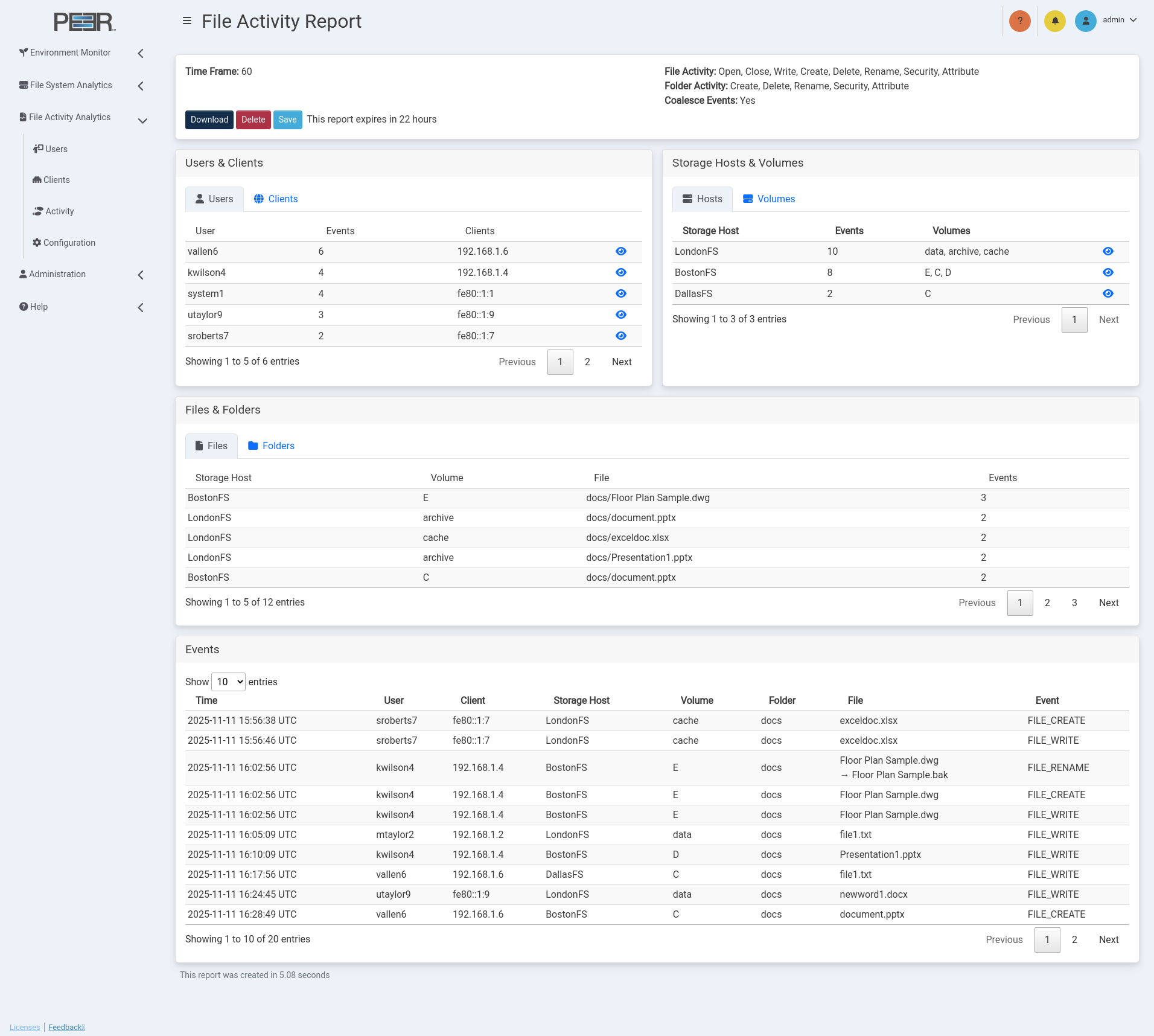
The File Activity Report organizes activity into related categories, including users, clients, storage hosts, volumes, files, folders, and events. Each card on the page presents a different aspect of the report. All displayed data represents the state at the time of report generation and does not update dynamically.
The report header displays the configured time frame, active filters, and available actions. The following buttons are shown:
- Download: Exports the complete report data as a compressed ZIP file. The ZIP archive contains individual CSV files for each section of the report, including:
Each CSV file corresponds to one of the cards described below.
-
Delete: Permanently removes the report.
-
Save: Opens a dialog box allowing the user to assign a name to the report. Once saved, the report is moved to the Saved Reports table and no longer expires.
If the report remains unsaved, a message displays the remaining time until expiration. Unsaved reports automatically expire 24 hours after creation, as described in the Activity Page section.
Viewing truncated values with the eye icon
Many columns will shorten long values and display an ellipsis to fit the table. Clicking the eye icon reveals the full contents of the truncated field. For example, in the Clients column of the Users & Clients table, a user may have activity from many IP addresses that do not fit in the cell. In that case, the column shows an ellipsis, and the eye icon will display the complete list. The eye icon behaves this way anywhere long values are truncated.
Users & Clients
The Users & Clients card lists all users and clients involved in file or folder activity during the selected time frame. This section provides the total number of events per user and the associated client systems from which the activity originated.
Storage Hosts & Volumes
The Storage Hosts & Volumes card summarizes the distribution of activity across all monitored storage systems. Two tabs are available:
- Hosts: Displays each storage host and the total number of recorded events.
- Volumes: Shows the corresponding volumes for each host and the event count per volume.
These two views help identify where activity was most concentrated within the environment.
Files & Folders
The Files & Folders card lists the individual files and folders associated with events in the report. Two tabs are available:
- Files: Lists all files where activity occurred, along with their storage host, volume, and number of events.
- Folders: Lists the affected folders using the same structure.
This information allows users to quickly identify which specific files or directories experienced notable activity during the report period.
Events
The Events card presents the full chronological record of actions captured within the report. Each row represents a single file or folder event and includes the following details:
- Time: The timestamp of the event.
- User: The user account that initiated the action.
- Client: The client system associated with the activity.
- Storage Host: The host where the event occurred.
- Volume: The volume on the storage host.
- Folder: The folder path where the file resides.
- File: The file name involved in the event.
- Event: The specific file or folder action, such as FILE_CREATE, FILE_WRITE, or FILE_DELETE.
The events listed in this table reflect all filters applied at report generation time. The report footer displays the total time required to generate the report.
Exported Data
When the Download button is selected, the system compiles the contents of all report sections into a ZIP file containing CSV exports. Each CSV file matches its respective on-screen table, preserving column order and data structure. These files can be imported into external analysis tools for further review or integration with third-party reporting systems.
File Activity Analytics Configuration
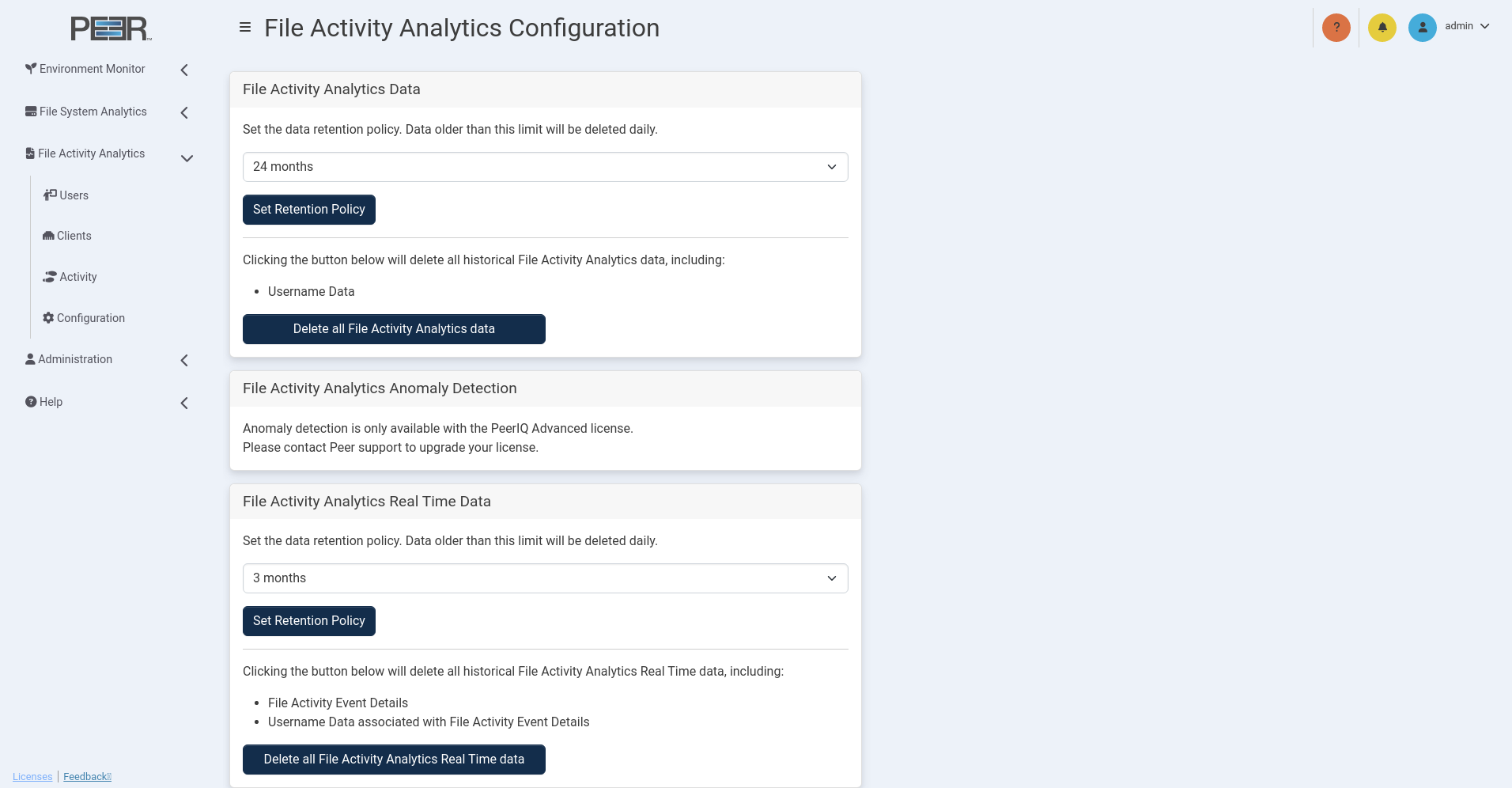
The File Activity Analytics Configuration page enables Administrators to manage how long PeerIQ retains activity data, control anomaly-detection settings, and delete historical data when necessary. These settings apply to all file and folder activity collected from the PeerGFS environment.
File Activity Analytics Data Retention
The File Activity Analytics Data card controls retention of the aggregated data used by the Users, Clients, and Activity pages.
Use the dropdown menu to select the maximum amount of historical data PeerIQ should store. Options range from 1 month to 24 months. Any data older than the configured limit is automatically removed during daily maintenance.
After selecting a retention period, click Set Retention Policy to apply it.
Note: Reducing the retention period permanently deletes all File Activity Analytics data that exceeds the new limit. Increasing the retention period does not restore previously deleted data.
You may also delete all File Activity Analytics data at any time by clicking Delete all File Activity Analytics data. This action removes all stored analytics history, including Username Data associated with that history.
Note: This action is irreversible. Once deleted, the data cannot be recovered.
File Activity Analytics Anomaly Detection
The File Activity Analytics Anomaly Detection option enables automatic analysis of user and client file behavior. When enabled, PeerIQ uses anomaly models that are refreshed daily. New real-time statistics are analyzed every 5 minutes to detect activity patterns that deviate from normal usage.
To enable or disable anomaly detection, select or clear the Enable Anomaly Detection checkbox, then click Save to apply the change.
Note: Disabling anomaly detection pauses the generation of new anomaly scores and prevents new anomalies from being identified until the feature is re-enabled.
If the PeerIQ installation does not include an Advanced license, this feature is unavailable. In this case, the following message is displayed instead of the configuration controls:
Note: Anomaly detection is only available with the PeerIQ Advanced license. Please contact Peer Software to upgrade your license.
File Activity Analytics Real-Time Data
The File Activity Analytics Real-Time Data card allows administrators to manage the lifecycle of real-time activity records collected by PeerIQ. This includes deleting all stored real-time data and configuring a data retention policy. Use the dropdown menu to specify how long PeerIQ should retain real-time event information. Available options include 1 month, 2 months, and 3 months. Any real-time activity data older than the selected retention period is automatically removed during daily maintenance.
After selecting a retention period, click Set Retention Policy to apply it.
Note: Reducing the retention period immediately deletes any real-time activity data older than the new limit. Restoring a longer retention period later does not recover previously deleted data.
Clicking Delete all File Activity Analytics Real-Time data permanently deletes all stored information associated with real-time file activity, including:
- File Activity Event Details
- Username Data associated with File Activity Event Details
This operation clears all historical data from the real-time analytics components.
Note: This action is irreversible. Once deleted, the data cannot be recovered.