Activity Page
The Activity page allows users to create, view, and download detailed reports of file and folder activity across monitored systems. Reports can be customized using filters for time range, users, clients, storage, files and folders, and activity types. Each report includes both high-level summaries and a full chronological event log.
Note: The Activity page is available only with a PeerIQ Advanced license. If your installation does not include this license, the Generate Report buttons will remain inactive.
Overview
The Activity page is accessible to all users. Any report generated, whether saved or unsaved, is visible to all users. Reports can be created for short-term review or saved for long-term reference. Each report provides both aggregate totals (such as event counts per user or storage host) and full event-level detail.
Filters
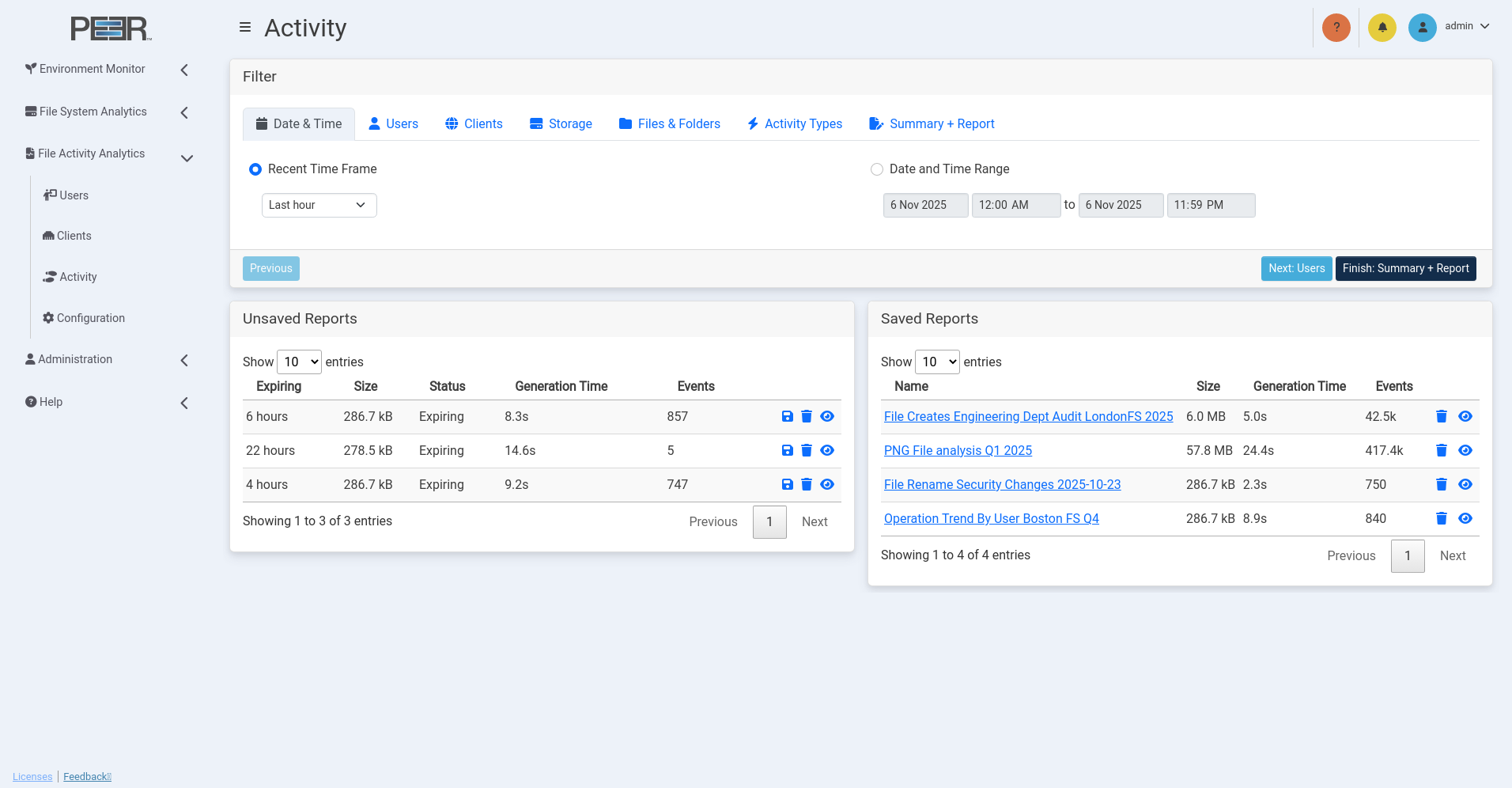
The top portion of the Activity page functions as a guided wizard, allowing users to configure their report step-by-step. Each tab in the filter row corresponds to a category, and you can progress by selecting Next or click directly on a tab to adjust specific criteria. You may return to previous tabs at any time using the Previous button or by selecting a tab directly.
The available filter tabs are:
Date & Time
Defines the time range for captured activity. Users may select a Recent Time Frame (for example, Last hour) or specify a custom Date and Time Range.

Users
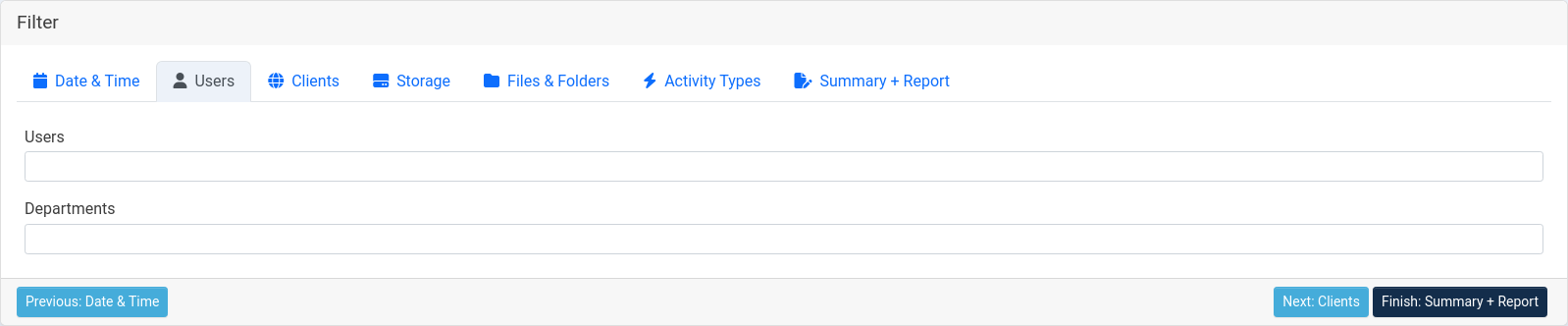
Filters by user accounts. The Users and Departments fields support type-ahead search, as you begin typing, PeerIQ displays matching users or departments automatically.
Clients
Filters by connected client systems. The Clients field also supports
type-ahead search for quick selection. Depending on network configuration,
both IPv4 and IPv6 addresses are supported. CIDR address ranges are
supported in standard notation, for example 10.10.10.1/24. In cases where
applications are performing file operations locally on a monitored file server,
loopback addresses such as 127.0.0.1 or ::1 will appear.

Storage
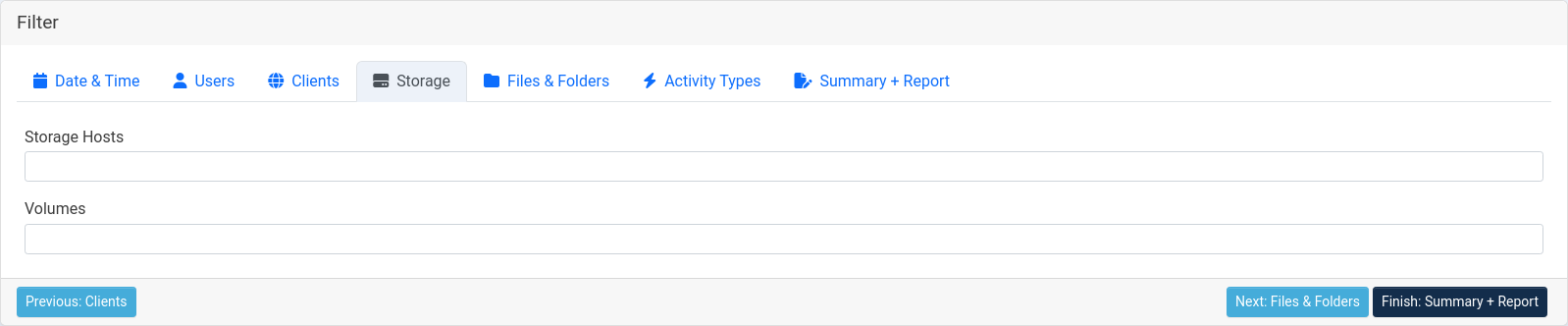
Filters activity by storage hosts and volumes. Both Storage Hosts and Volumes fields support type-ahead search. Begin typing to see matching names or identifiers.
Files & Folders
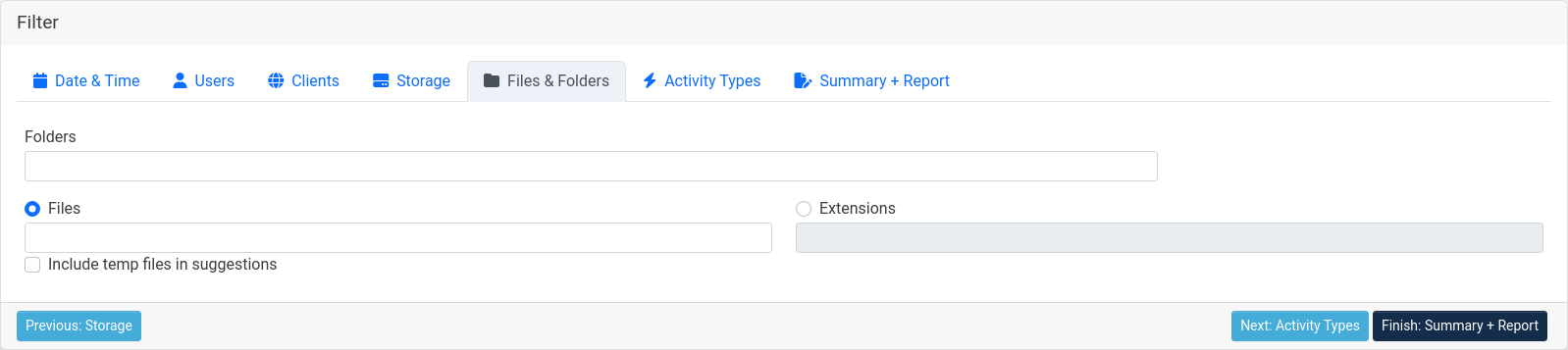
Specifies which files or folders are included. The Folders, Files, and Extensions fields all support type-ahead search. The File Name and Extension filters are mutually exclusive—only one may be active at a time.
Selecting Include temp files in suggestions expands the filter to include system and application-generated temporary file patterns such as:
This is useful for analyzing activity involving creating or modifying temporary working files (for example, Microsoft Office save operations).
Activity Types
Determines which categories of file and folder events are included.
File activity: Open, Close, Create, Delete, Rename, Write, Attribute, and Security. Folder activity: Create, Delete, Rename, Attribute, and Security.
Selecting All File Activity or All Folder Activity includes every respective event type.

Coalesced Events
When enabled, Coalesce Events simplifies repetitive or system-generated activity sequences into a single, meaningful event. PeerIQ identifies patterns, such as those produced by Microsoft Office—and converts them into a more readable form.
For example, saving a Word document generates the following raw events:
| Event | File |
|---|---|
| FILE_CREATE | ~WRD0002.tmp |
| FILE_WRITE | ~WRD0002.tmp |
| FILE_SECURITY | ~WRD0002.tmp |
| FILE_RENAME | manual.docx -> ~WRL0003.tmp |
| FILE_RENAME | ~WRD0002.tmp -> manual.docx |
| FILE_ATTRIBUTE | ~WRL0003.tmp |
| FILE_DELETE | ~WRL0003.tmp |
With Coalesce Events enabled, these are condensed into:
| Event | File |
|---|---|
| FILE_WRITE | manual.docx |
This makes the resulting report easier to interpret by showing the actual user action rather than low-level application IO. Because coalescing requires additional pattern analysis, enabling this option can increase the time required to generate reports, especially in environments with a high volume of Microsoft Office document activity.
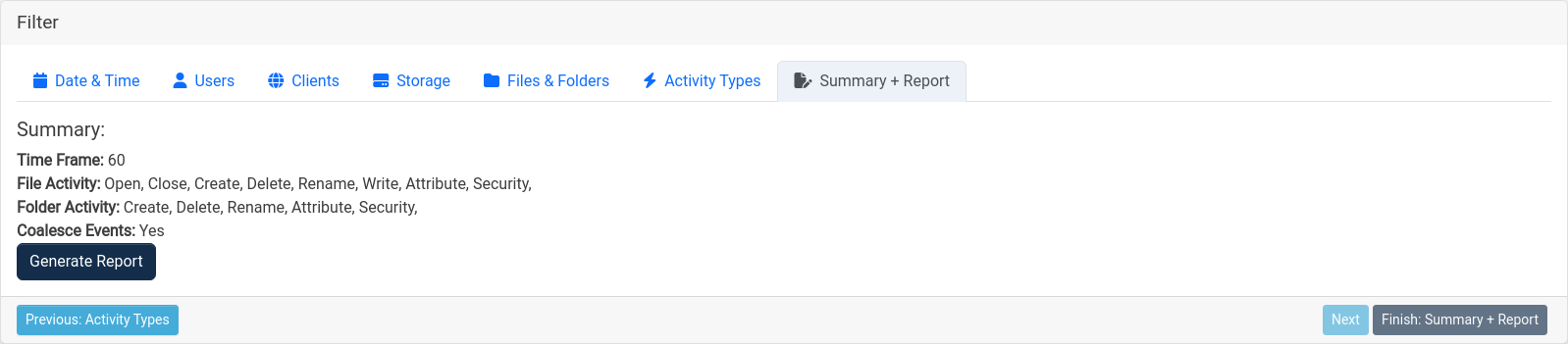
Summary + Report
The final step in the wizard is the Summary + Report tab. This tab displays an overview of all filters selected during setup, including:
- Time Frame
- File Activity and Folder Activity settings
- Coalesce Events configuration
From here, users can review their selections before generating a report.
Click Generate Report to begin report creation. Large reports—particularly those covering broad time ranges or multiple users, volumes, or storage hosts—may take over an hour to generate. To minimize generation time and improve clarity, it is recommended to use the most precise and narrow filters possible.
Once generation begins, a new entry will appear in the Unsaved Reports table showing its progress.
Unsaved and Saved Reports
Below the filter section, two tables display available reports: Unsaved Reports and Saved Reports. Both share common controls:
- The bin icon deletes a report.
- The eye icon opens a report for viewing.
Unsaved Reports
- Contain reports in progress or temporarily stored.
- Reports in progress show one of three statuses: Generating, Coalescing, or Building Views.
- Reports that are still processing do not display an expiration time.
- Once finished, unsaved reports automatically expire 24 hours after completion.
- To preserve a report, click the Save (disk) icon, this moves it to the Saved Reports table.
- Click the eye icon to view the report.
Saved Reports
- Contain reports explicitly saved by a user.
- Saved reports do not expire and remain available until deleted.
- Each record shows the report’s Name, Size, Generation Time, and Event Count.
- Click the eye icon to view the report or the bin icon to delete it.