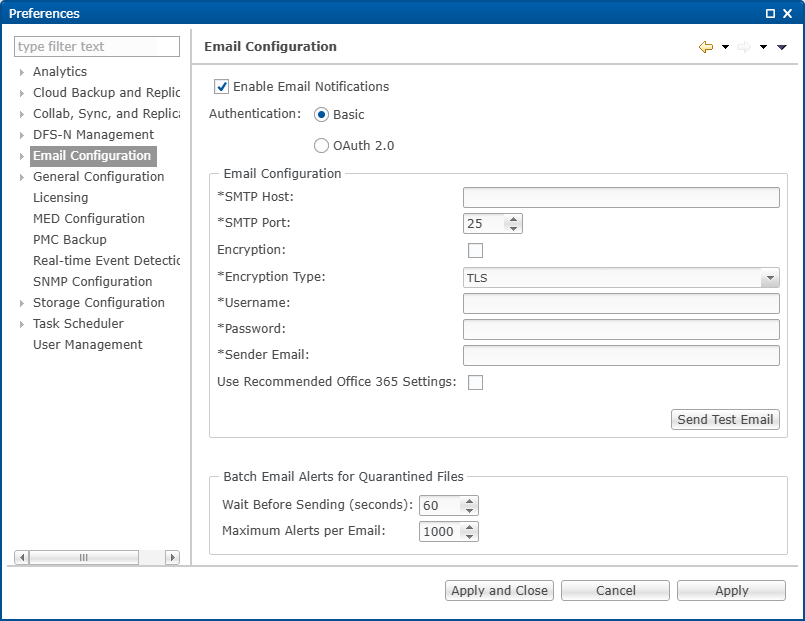
Select Basic under Authentication to use standard user name and password credentials for sending email through an SMTP server. Enter the SMTP server settings and credentials required by your email provider.
To configure Basic authentication:
1.Enter values for the following fields:
Field |
Description |
|---|---|
SMTP Host |
Enter the host name or IP address of the SMTP mail server through which Peer Management Center will send emails. |
SMTP Port |
Enter the TCP/IP port used by the mail server’s SMTP service. The default is 25, or 465 when encryption is enabled. |
Encryption |
Select this checkbox if the SMTP server requires an encrypted connection. |
Encryption Type |
If encryption is enabled, select TLS or SSL. If you are unsure which is required, try one, and then the other. |
Username |
Enter the user name for the SMTP server account. |
Password |
Enter the password for the specified user. |
Sender Email |
Enter the email address to appear in the From field of sent emails. The address must correspond to a valid account on the SMTP server. |
Use Recommended Office 365 Settings |
Select this checkbox if connecting to an Office 365 SMTP server and you want PeerGFS to apply Microsoft’s recommended Direct Send settings automatically. If you use another provider, leave this checkbox unchecked. |
2.(Recommended) Click Send Test Email, enter a destination address, and then click OK to send a test message and verify that the configuration works.
4.(Optional) Complete the Batch Email Alerts for Quarantined Files section.
Use this section to define how alerts for quarantined files are batched and sent when email notifications are enabled. For descriptions of the fields, see Email Configuration.
3.Click Apply to save your changes.