Use the Email Configuration page to control whether Peer Management Center sends email notifications and to specify how it connects to an email provider. You can also configure how alerts for quarantined files are batched and sent.
The page contains the following groups:
•Authentication — Controls which method Peer Management Center uses to authenticate with the email provider and determines which configuration fields are displayed.
•Email Configuration — Displays the fields required for the selected authentication method (Basic or OAuth 2.0).
•Batch Email Alerts for Quarantined Files — Controls how quarantined-file alerts are batched and delivered.
To configure email settings:
1.Select Open Preferences from the Tools menu.
2.Select Email Configuration in the navigation tree.
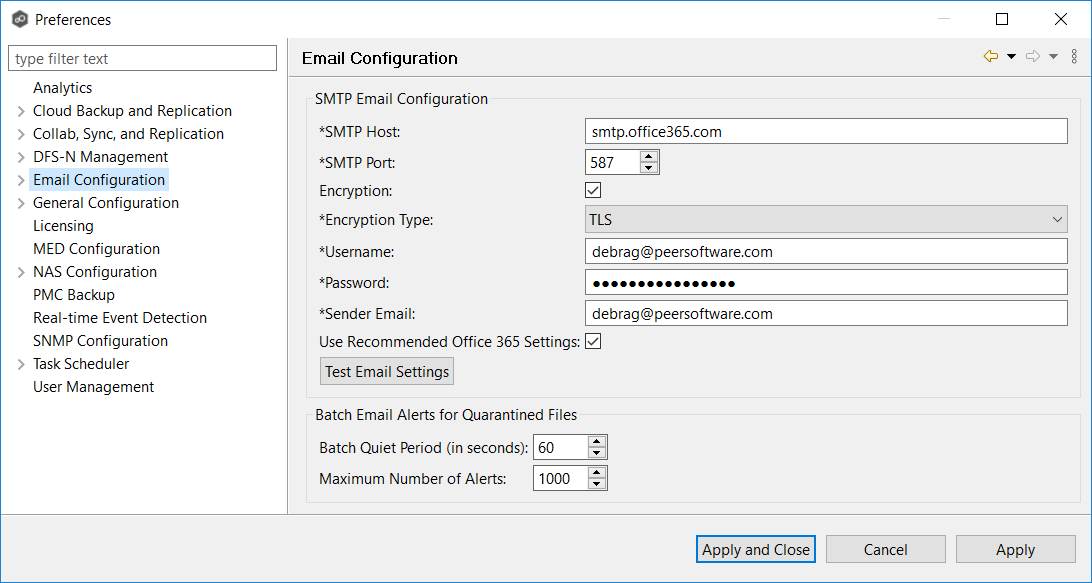
3.At the top of the page, select Enable Email Notifications.
•When this checkbox is unchecked, all email-related sections appear dimmed and Peer Management Center does not send any email messages.
•When it is checked, the authentication and configuration fields become active.
4.Under Authentication, select one of the following methods.
Option |
Description |
|---|---|
Basic |
Uses standard user name and password credentials authentication. Selecting this option displays the Email Configuration section for Basic authentication. |
OAuth 2.0 |
Uses modern OAuth2 authentication with provider authorization. Selecting this option displays the Email Configuration section for OAuth 2.0, including provider-specific fields and buttons to authorize and test the connection. |
4.Complete the configuration fields for the selected authentication method:
•If you selected Basic, see Basic Email Configuration.
•If you selected OAuth 2.0, see OAuth2 Email Configuration.
5.(Optional) Complete the Batch Email Alerts for Quarantined Files section.
Use this section to define how alerts for quarantined files are batched and sent when email notifications are enabled.
Field |
Description |
|---|---|
Wait Before Sending (seconds) |
Enter the number of seconds Peer Management Center waits after the last alert before sending the batch. |
Maximum Alerts per Email |
Enter the maximum number of alerts to include in a single email. |
6.Click Apply to save your changes.