To modify file metadata synchronization settings:
1.Select whether to synchronize metadata in real time and during the initial scan:
•Real-time synchronization: Metadata changes (such as ownership, permissions, and ACLs) are synchronized with the target host as they occur.
•Initial scan synchronization: Metadata is synchronized during the initial scan.
Note: Enable both synchronization options together or disable both. Using only one option is not supported. For more information, see When should I synchronize permissions in real-time but not during the scan?
2.If you enable real-time and initial scan synchronization, click OK when prompted.
3.(Optional) Enable prevention of corrupt or blank Owner or ACLs.
This ensures that invalid ownership or ACL entries on the source or master host are not applied to target hosts. The replication process skips or corrects these entries to maintain data integrity and security.
4.Select the security style:
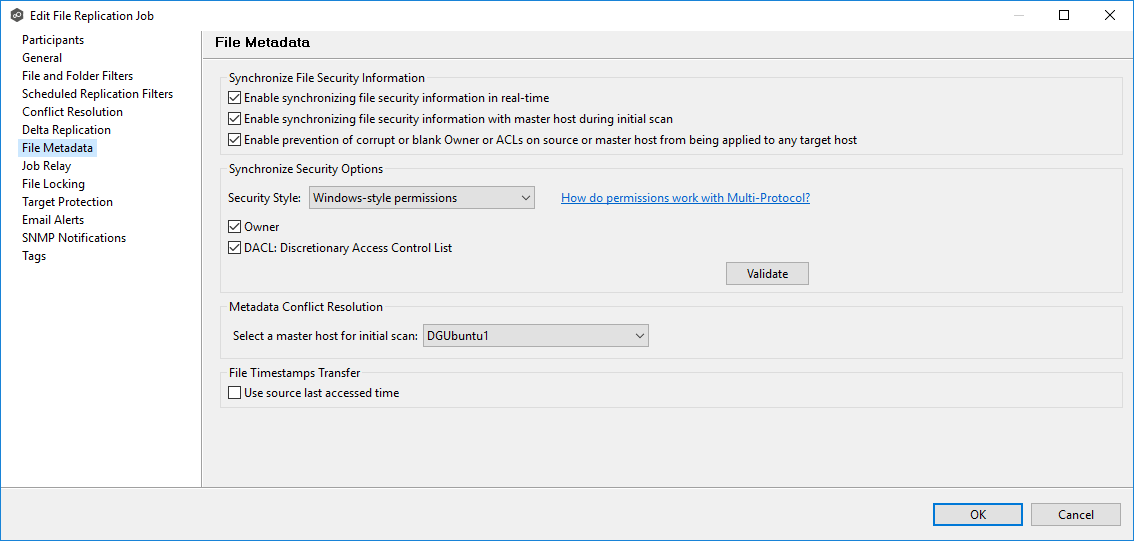
•Windows-style permissions
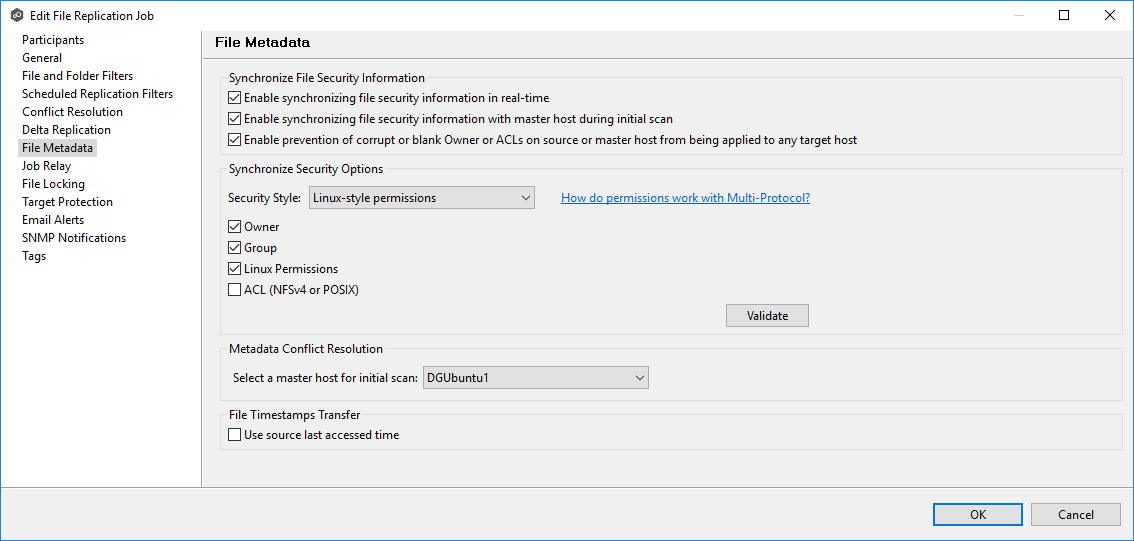
•Linux-style permissions
5.Select the permissions to be synchronized.
Note: To synchronize ownership or auditing information, the account under which the Peer Agent service runs must have sufficient privileges to read and modify ownership, permissions, and ACLs on all participating hosts
For a general discussion of synchronizing permissions in a multi-protocol job, see the Peer Software knowledge base article How Do Permissions Work with Multi-Protocol?
•Windows-style permissions
•Linux-style permissions
6.Select the master host for resolving metadata conflicts during the initial scan (if applicable):
•If synchronizing metadata during the initial scan, choose a master host to resolve conflicts.
•If permissions differ across participants, conflict resolution will use the master host’s permissions.
•If the file does not exist on the master host, a participant will be chosen randomly.
7.(Optional) In the File Timestamps Transfer section, enable Use source last accessed time to preserve timestamps during transfer operations:
These timestamps are applied only during transfer operations. If timestamps on the source change but the file contents remain the same, the updated timestamps are not applied to the destination.
8.Click OK to close the Edit wizard or select another configuration item to modify.