PeerGFS supports Dell storage running PowerScale, PowerStore, or Unity for SMB- and NFS-based jobs. For detailed information about Dell prerequisites, see Dell Prerequisites.
To create a new Dell configuration:
1.Select Open Preferences from the Tools menu.
2.Expand Storage Configuration in the navigation tree, and then expand Storage Platforms.
3.Select Dell Configurations.
The Dell Configurations page is displayed. It lists any existing configurations.
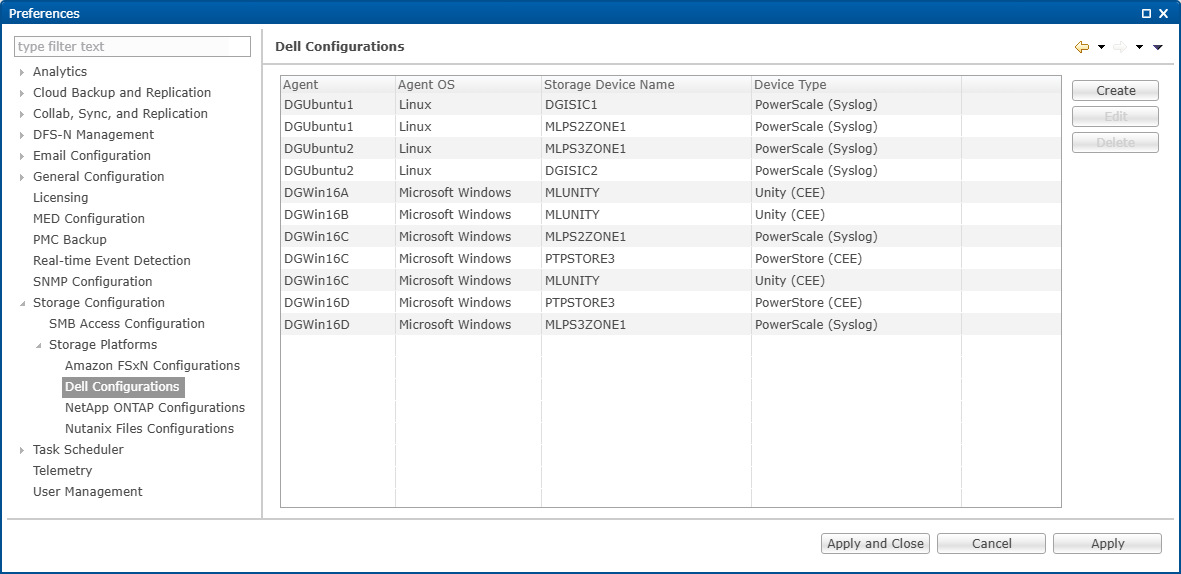
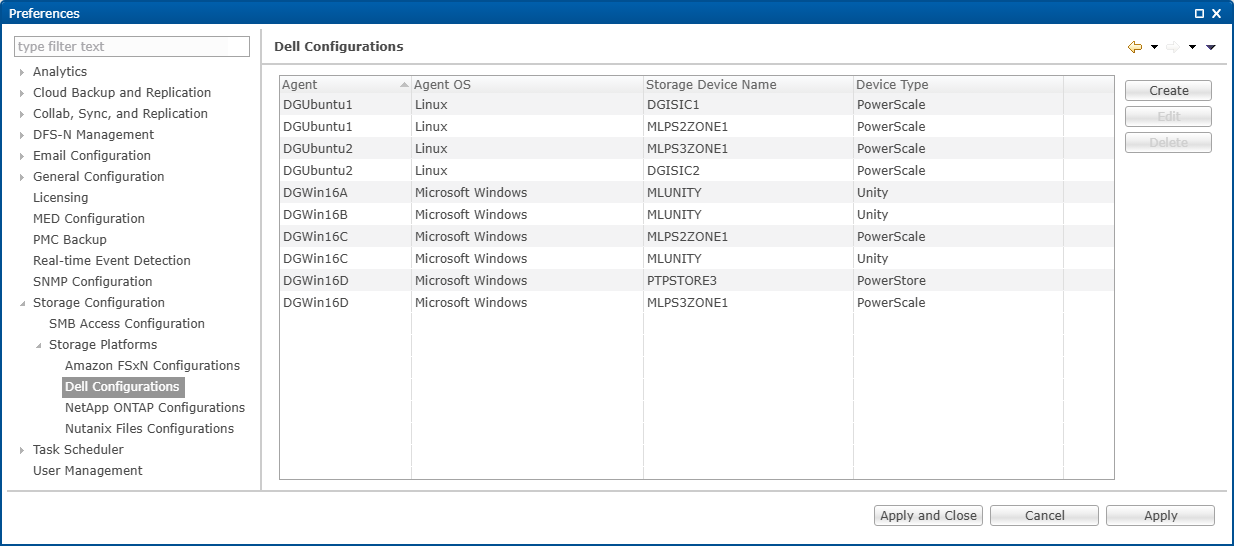
4.Click the Create button.
The Management Agent page appears.
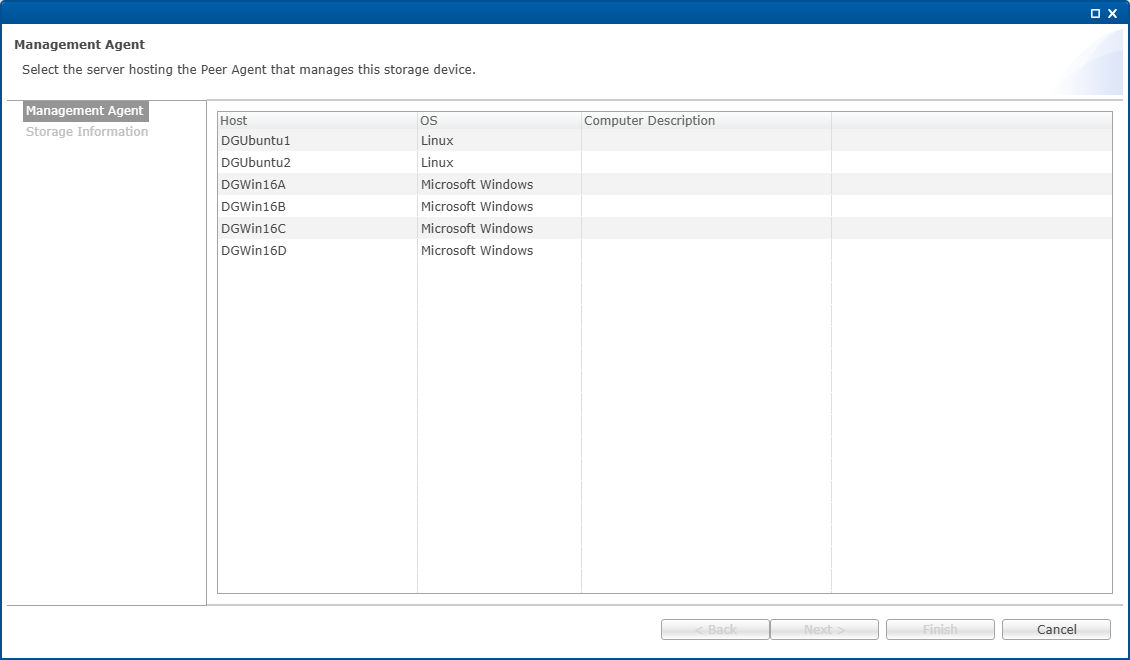
5.Select a Management Agent, and then click Next.
The Storage Information page appears. The fields in the Credentials section vary, depending on the selected platform type; PowerScale is selected by default.
6.Select the device type from the Device Type drop-down.
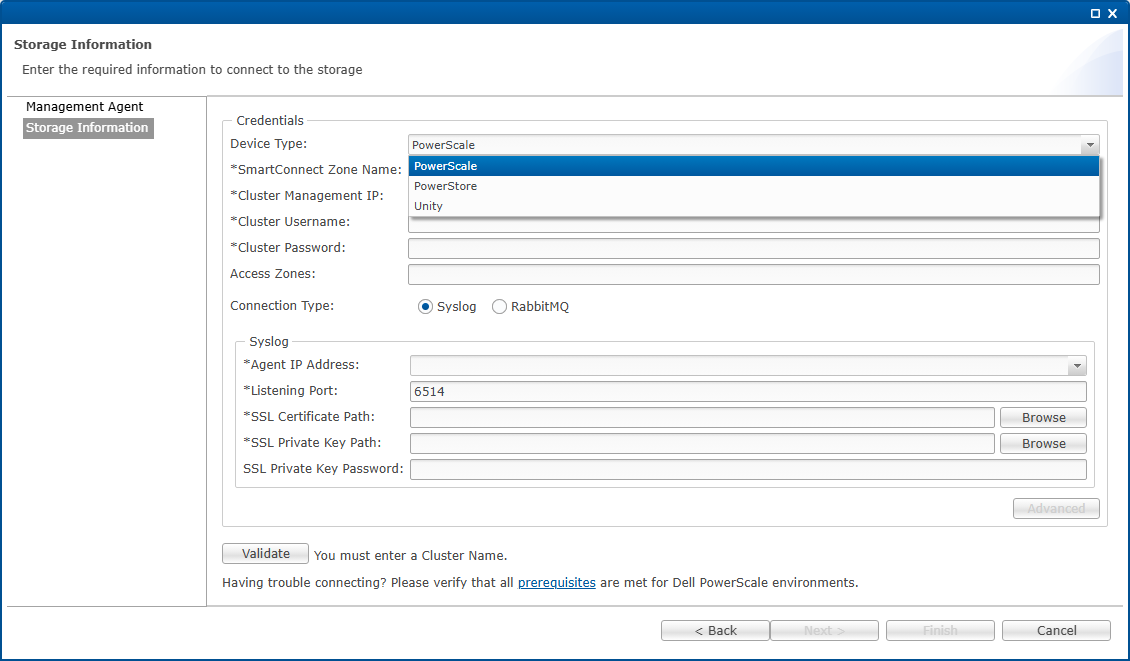
7.In the credentials page that appears, enter the required values.
For platform-specific field descriptions, see:
8.(Optional) Click the Advanced button if you want to specify advanced options, and then configure the advanced options.
For platform-specific field descriptions, see:
Dell PowerScale Advanced Options
Dell PowerStore Advanced Options
9.Click Validate.
10.Click Next.
11.Click OK.