The Application Enhancements page provides specialized settings for controlling how specific file types are processed and replicated. These settings can be used to change replication priority, retry behavior, write handling, and other file-type-specific processing.
Some options allow you to prioritize replication for specified file types by placing matching files or events in expedited processing queues.
Most of the settings on this page are automatically configured based on selections made on the the Application Support page for the job.
Consult with the Peer Support before changing these settings. Modifying automatically configured values may cause unexpected results..
To configure Application Enhancements settings:
1.Select Open Preferences from the Tools menu.
2.Expand Collab, Sync, and Replication in the navigation tree, and then select Application Enhancements.
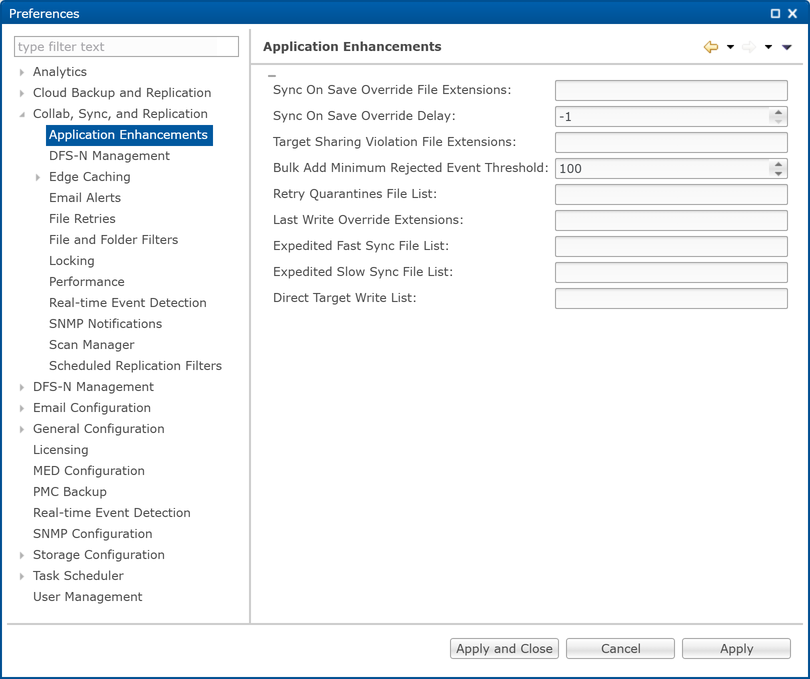 Y
3.Modify the options as needed.
Option |
Description |
|---|---|
Sync On Save Override File Extensions |
Enter one or more file extensions for which the Sync On Save settings configured for the job should be overridden. These extensions use the delay specified in Sync On Save Override Delay instead of the delay configured for the job. If no override delay is specified, a one-second delay is used. Extensions in this list are processed using Sync On Save even if they also appear in the user-defined non-collaborative extension list. Extensions that appear in both the standard Sync On Save list and this list use the override settings rather than the standard Sync On Save settings. |
Sync On Save Override Delay |
Enter the delay, in seconds, to apply to the extensions listed in Sync On Save Override File Extensions. |
Target Sharing Violation File Extensions |
Enter one or more file extensions for which PeerGFS should retry setting the target lock after receiving error code 32. This setting can be useful for file types such as .one (OneNote), .rvt (Revit), and .dat (associated Revit files) that do not maintain a handle while the file is open. |
Bulk Context Minimum Rejected Event Threshold |
Enter the number of bulk-added files that should be processed immediately before the remaining files are batched and processed in a single thread. |
Retry Quarantine File List |
Enter one or more file names or file extensions for quarantined files that should be automatically removed from quarantine, marked as unsynchronized, and retried every second after a configured delay period. If a change event is detected for one of these files, PeerGFS scans the file and the newest file wins. The list can contain specific file names, such as wperms.dat, eperms.dat, requests.dat, deltas.dat, and users.dat, or file extensions, such as *.dat and *.abc. |
Last Write Override Extensions |
Enter one or more file extensions for which PeerGFS should process every write event instead of waiting for the final write event before the file is closed. |
Expedited Fast Sync File List |
Enter one or more file names or file extensions for which access and transfer events should be expedited. Matching files or events are placed in an expedited processing queue. |
Expedited Slow Sync File List |
Enter one or more file names or file extensions for which access events should be expedited. Transfer events for these files are processed through a lower-priority queue. |
Direct Target Write List |
Enter one or more file names or file extensions for files or events that should be updated directly on the target without using a temporary file. The list can contain specific file names, such as wperms.dat, eperms.dat, requests.dat, deltas.dat, and users.dat, or file extensions, such as *.dat and *.abc. |
4.Click Apply to save your changes.