Overview
Peer Global File Service licensing is based on:
•The number of unique participants
•The number of terabytes configured in the watch sets
Depending on the license package installed, additional features and functionality may also be enabled.
Use the Licensing preferences page to:
•Install or update license files
•View installed license information
•Review license quantities and expiration dates
•Delete license files
Installed licenses are displayed in the Peer Software Licensing Configuration table. Select a license to view additional details, including:
•Package name
•License type
•Version number
•Expiration date
•Licensed features
•Capacity and job limits, if applicable
Installing or Upgrading a License File
After purchasing Peer Global File Service or requesting a trial, you receive a license file for your deployment.
To install a new license file or upgrade an existing license:
1.Select Open Preferences from the Tools menu.
2.Select Licensing in the navigation tree.
Existing valid licenses are listed in the Peer Software Licensing Configuration table.
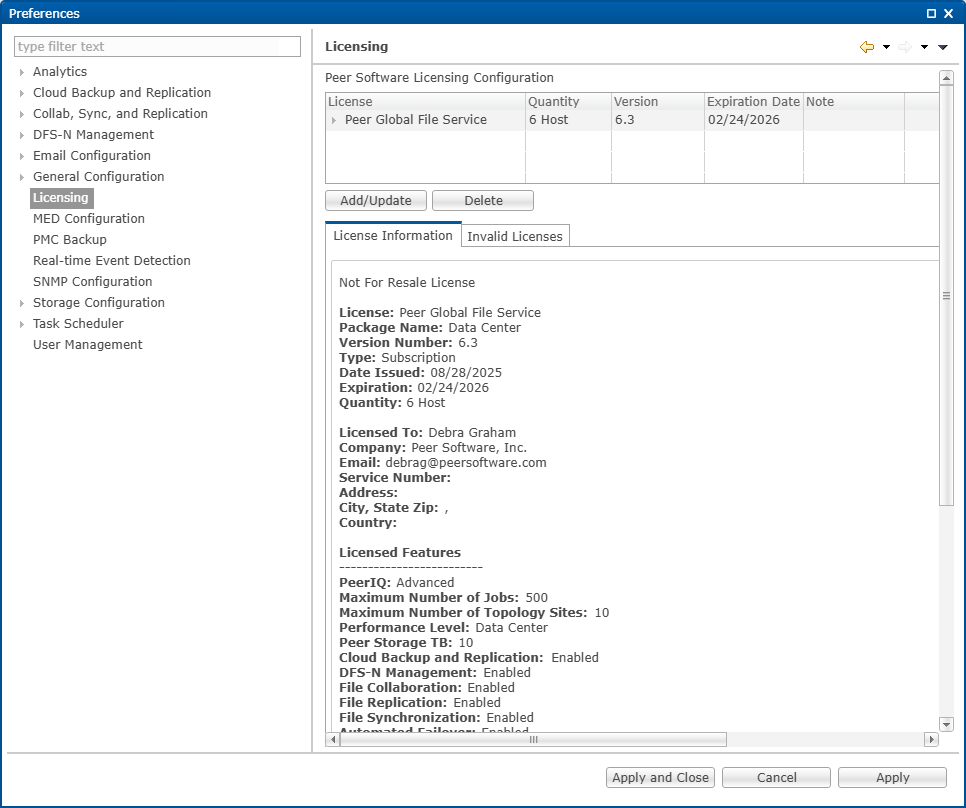
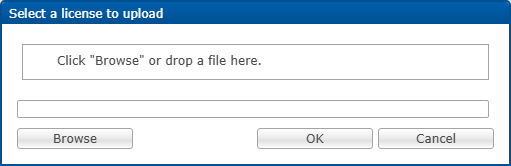
3.Click the Add/Update button to browse for a license file.
4.Select the license file, and then click Open.
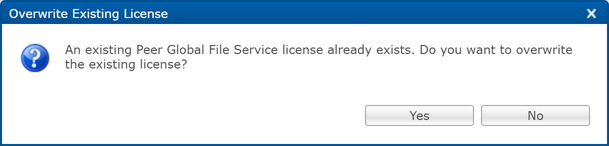
If an existing license is detected, click Yes to replace it.
After the license is installed, the license appears in the licensing table with:
•License quantity
•Version
•Expiration date, if applicable
5.Select a license in the table to view additional details:
•The software version changed
•The package level changed
•The new license does not support the number of existing hosts
6.Click Apply to save the configuration.
Restart Requirements
Restart existing jobs if any of the following conditions apply:
•The software version changed
•The package level changed
•The new license does not support the number of existing hosts
Deleting a License File
To delete a license.
1.From the Windows menu, select Preferences.
2.Select Licensing in the navigation tree.
3.Select the license you want to delete.
4.Click the Delete button.
After a license is removed, job types enabled only by that license are no longer available in Peer Management Center.