Please note that this functionality currently does not support NFS or Multi-Protocol workloads. |
These settings control DFS-N root location, namespace checking, timeout behavior, and DFS-N resource display options for DFS-N Management jobs.
To modify settings for DFS-N Management jobs:
1.Select Open Preferences from the Tools menu.
2.Select DFS-N Management in the navigation tree.
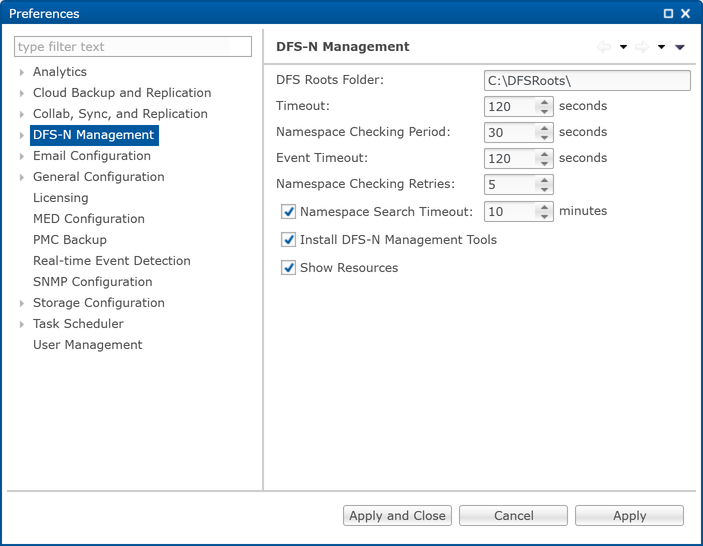
3.Modify settings as needed.
Setting |
Description |
|---|---|
DFS Roots Folder |
The default folder for namespace roots is C:\DFSRoots\. To use a different folder , enter the local path to the folder. |
Timeout |
Enter the number of seconds to wait for a response from any Agent. The default value is 120 seconds. |
Namespace Checking Period |
Enter the number of seconds to delay between checking namespace information calls. This check detects changes made to a namespace using the Microsoft DFS Management tool. Selecting a low value negatively affects performance but reflects changes to the user interface more quickly. The default value is 120 seconds. |
Event Timeout |
Enter the number of seconds to wait before marking an event containing DFS namespace information from the Agent as timed out. The default value is 120 seconds. |
Namespace Checking Retries |
Enter the maximum number of times to check namespace information if the namespace is not found. Once the maximum number is exceeded, the job is stopped. The default value is 5 retries. |
Namespace Search Timeout |
When a user tries to import a namespace, PeerGFS searches for the namespace. This may take some time, depending on the environment. Enter the number of minutes to wait before timing out. The default value is 10 minutes. |
Install DFS-N Management Tools |
Installs Microsoft's DFS-N Management tools when creating or importing a namespace. |
Show Resources |
Displays individual namespace folders under each namespace in the Jobs view. |
4.Click Apply to save your changes.