When you create a job, you can select an existing SMNP notification to apply to the job or you can create a new notification and apply it to the job. You cannot modify or delete an SMNP notification while it is applied to a job. See SMNP Notifications in the Basic Concepts section for more information about SMNP notifications.
To create an SMNP notification:
1.Select Open Preferences from the Tools menu.
2.Expand Analytics in the navigation tree, and then select SNMP Notifications.
Any existing SNMP notifications are listed in the SNMP Notifications table.
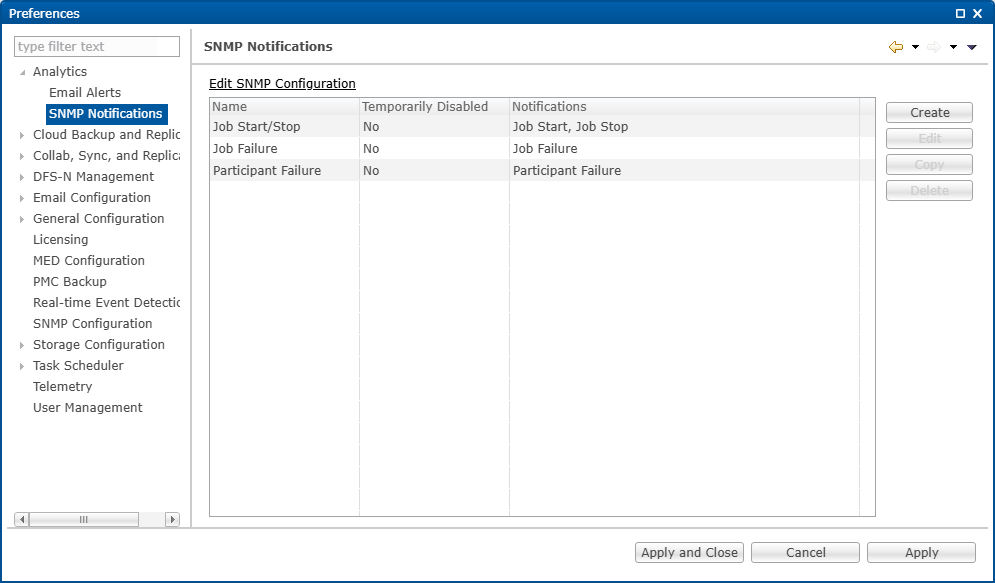
3.Click the Create button.
The Create SNMP Notification dialog appears.
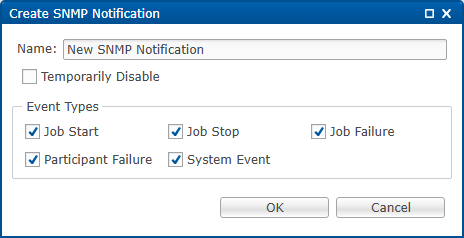
4.Select the types of events that will trigger the generation of an SNMP trap:
Event Type |
Description |
|---|---|
Job Start |
Sends a notification when the job starts. |
Job Stop |
Sends a notification when the job stops. |
Job Failure |
Sends a notification when job stops unexpectedly. |
Participant Failure |
Sends a notification when the Management Agent job disconnects or stops responding. |
System Event |
Sends a notification when a system event such as low memory or low hub disk space occurs. |
5.Click OK.
The new notification is listed in the SNMP Notifications table and can now be applied to jobs.

6.Click Apply to save your changes.